
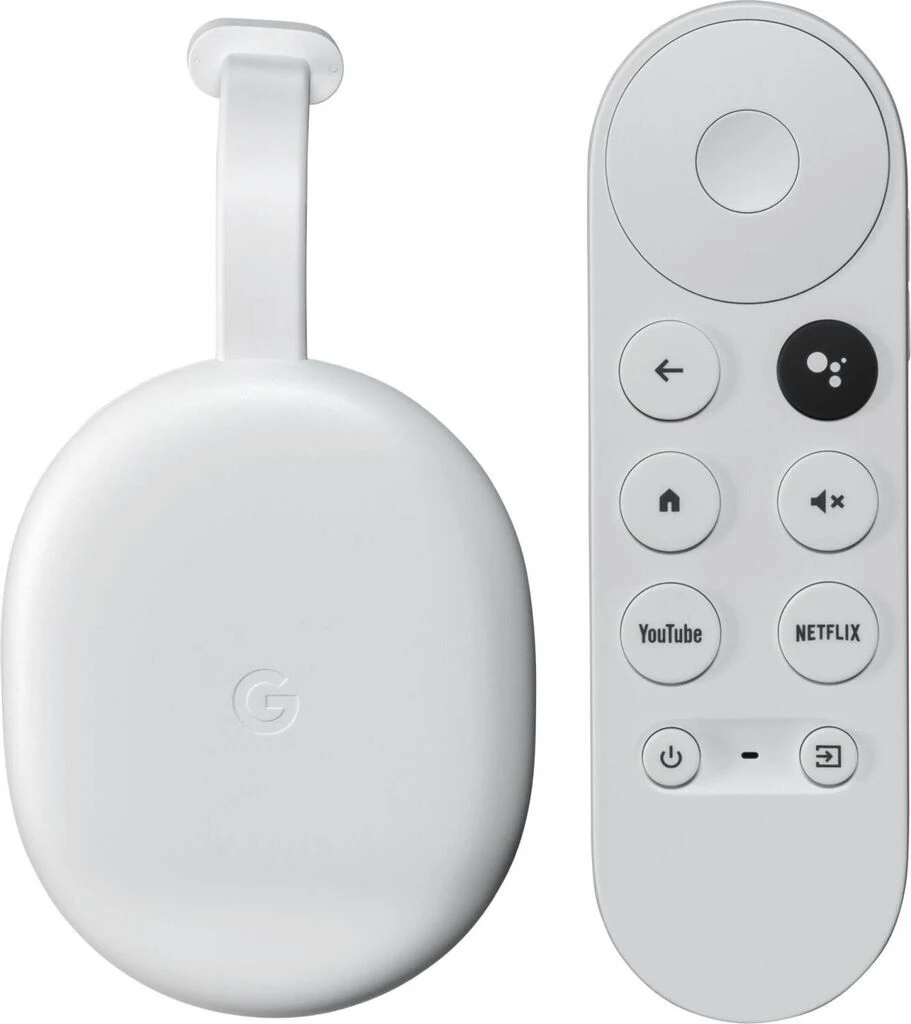
Choose a casting method that matches your devices
To cast MLB video, use the MLB app’s Cast control with a compatible receiver, connect the devices to the same home network, and select content your account is entitled to watch. The important qualifications are the phone platform, receiver support and video type. A smart television alone does not establish that a particular casting method will work.
MLB’s Android guidance includes live and archived Chromecast playback; its Apple guidance explicitly names archives and on-demand video. Do not assume identical support. This guide explains the setup and diagnosis while keeping that distinction visible. The information was checked October 17, 2026; app controls and supported models can change.
Google Cast, AirPlay and screen mirroring are different
Google Cast uses a compatible app and receiving device. AirPlay is Apple’s separate system. Screen mirroring displays the phone’s screen on another display. A television can support one method without supporting another, so “I can send another app to this TV” does not establish that you are testing the same connection method.
Start by identifying the receiver’s actual capability. Look in its current manufacturer documentation for Google Cast, Chromecast support or AirPlay, rather than relying on the word “smart.” If a separate HDMI streaming device is connected, identify that device as well as the television. The screen showing the picture and the device receiving the stream may be different products.
Our MLB app comparison helps distinguish the MLB app from broadcaster apps and other baseball tools. Use the app associated with the video you want. A method that works in a broadcaster’s application should not be assumed to have the same controls inside MLB.
Check the game before troubleshooting the television
Try the desired video on the phone first. If it is locked there, begin with the account, subscription or game-rights message. A receiver cannot supply a subscription that the sending account lacks. If the video plays locally but the television never appears, discovery is the more useful next question.
Write down the exact symptom before changing settings: no Cast control, no receiver in the list, receiver connects but picture fails, or video begins and buffers. Those observations divide the problem into stages. They are more helpful than treating every failure as a broken television or immediately purchasing another streaming device.
Cast from the MLB app on Android
Begin with a receiver that is already set up and showing its normal home screen. If it is a separate HDMI device, confirm power and select the television input connected to it. Initial receiver setup is a different job from opening a baseball stream; finish that setup before looking for an MLB-specific fix.
Connect, select the receiver and start playback
- Connect the Android phone and receiving device to the same home Wi-Fi network. Check the network names rather than assuming that proximity means they are connected together.
- Open the current MLB app and sign in to the account associated with your viewing access. Use the app’s Watch area to locate the desired content.
- Find the Cast control in the app or player. Its position can change between app versions, so use the current interface rather than an old screenshot.
- Select the intended receiving device. If several rooms appear, choose the name shown for the television you are using.
- Start an available video and confirm that picture and sound reach the television. The connected control alone does not prove that the selected game is authorized.
Google’s Cast-enabled app instructions describe the general connection process. Use the Cast control again to disconnect when finished. If the desired receiver never appears, move to discovery troubleshooting rather than repeatedly starting the same video.
A useful first test is a video that you can already play successfully on the phone. Keep the receiving device, home network and account unchanged while you test. That produces a meaningful comparison: either the same content reaches the television, or the failure begins when the receiver is introduced.
Do not combine several changes at once. Switching accounts, reinstalling the app and changing the router during one attempt makes it difficult to know which step mattered. First establish that the phone can find the receiver; then establish that the receiver can play the selected video. Keeping those observations separate makes the next troubleshooting decision much clearer.
Cast from an iPhone or iPad with the right expectations
On an iPhone or iPad, check permissions and receiver compatibility before expecting the same result as an Android test. Use a video covered by the app’s documented casting support for your platform. Changing the phone does not establish that an identical video path or control will be available.
Check Local Network permission
Apple lets you review local-device access in Settings → Privacy & Security → Local Network. Find the relevant app in that list and allow access if you want it to discover devices on your home network. Apple’s local network permission guide explains that control.
Check the application you are actually using. Permission for Google Home during receiver setup is not a substitute for inspecting the MLB app’s own permission when it appears in the list. After changing a setting, return to the app and retry discovery before making another change.
It is possible for an app to reach the internet while local-device discovery fails. Opening baseball news or loading a score therefore does not establish that the phone can find a receiver in the room. Treat internet access and local discovery as separate tests.
Why AirPlay is not a universal MLB solution
Apple’s AirPlay instructions explicitly note that some video apps do not support AirPlay. The general ability to mirror an iPhone, or to send another application’s video to an Apple-compatible television, is not a guarantee for the specific MLB video you are trying to watch.
If the player offers an applicable supported route, use that route and verify actual playback. If it does not, avoid spending the evening repeatedly searching for an AirPlay control that the current player is not presenting. A television’s AirPlay logo does not establish the sending app’s content support.
Screen mirroring is also not a promised fix for a protected video that fails to display. A phone’s menus appearing on the television proves that the screen connection exists; it does not prove that every video inside an app will be shown. Do not buy a third-party mirroring product on the assumption that it guarantees MLB playback.
When the mobile route is unsuitable, check for MLB’s supported native app on your exact Apple TV or television model. That changes the viewing method without inventing a feature in the phone app. Confirm the device and account requirements before treating it as a working alternative.
Fix a missing Cast button or missing television
A missing receiver is a discovery problem to investigate before changing the baseball subscription. Work from the shared connection outward: network, receiver setup, app permissions and software. Keep a note of the first point at which the expected device appears.
Put the phone and receiver on a shared home network
Check both devices’ network settings. A phone using cellular data and a television on home Wi-Fi are not on the same local connection. Guest networks and isolated network segments can also prevent devices from finding each other even when both have internet access. Compare the actual network arrangement rather than only the Wi-Fi symbol.
If your router uses separate guest and household networks, use the appropriate shared household connection for the test. On a hotel, office or campus network, ask the administrator whether local-device discovery is permitted. A network designed to keep guests apart may not allow the connection required for casting.
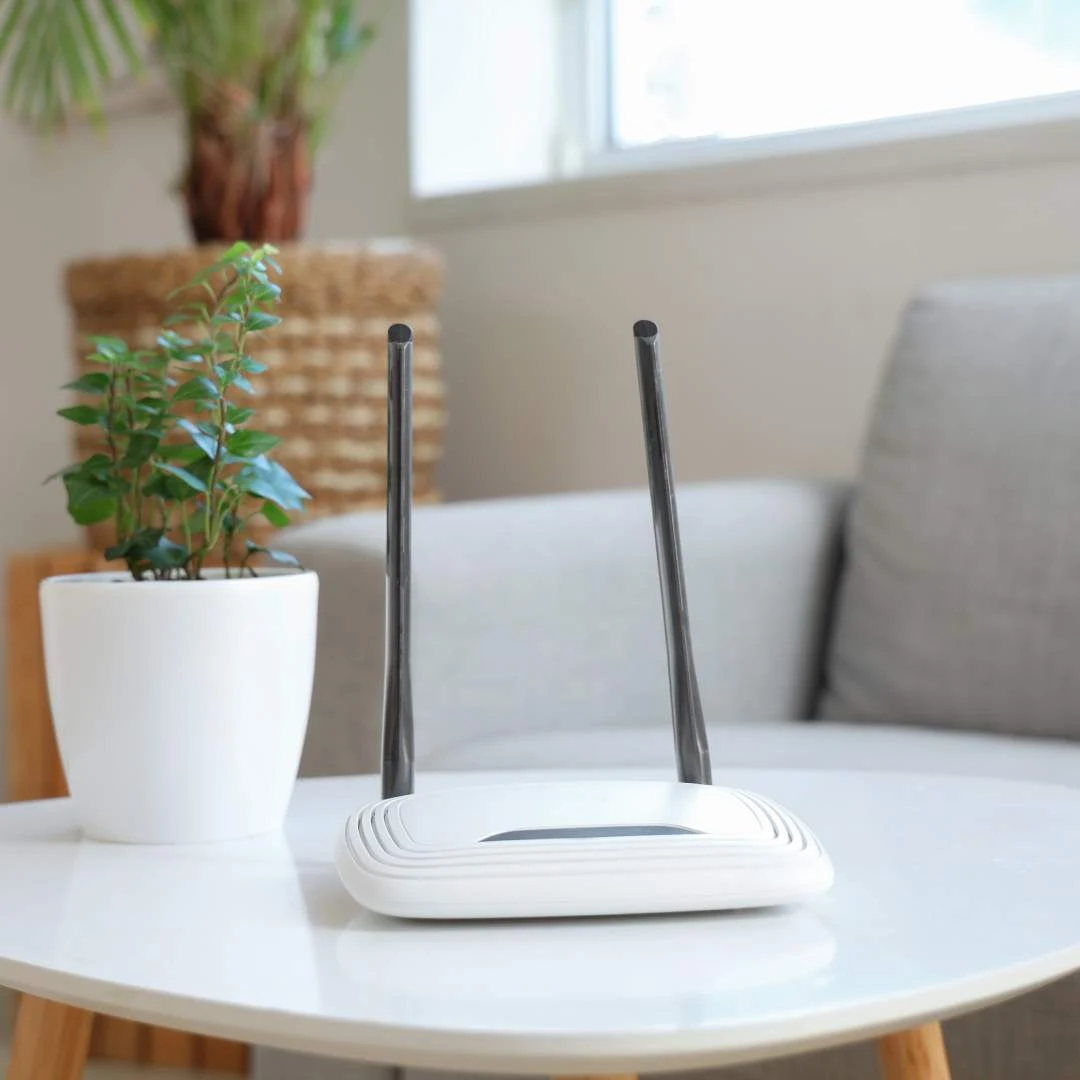
Do not confuse a weak wireless signal with an unsupported receiver. Both can prevent a successful session, but moving closer to the router cannot add Google Cast to a device that does not support it. Establish the receiver’s capability first, then test its connection.
Update and restart in a controlled order
Install available app and device software updates, then restart the app and receiving device. For a receiver that has never been configured successfully, complete the manufacturer’s initial setup rather than diagnosing it as an MLB failure. Google’s current setup guidance is the appropriate reference for its hardware.
When a Google TV’s casting function has been disabled, use that model’s settings to enable Google Cast and restart the device. Menu labels vary, so follow the manufacturer’s current instructions. Avoid applying a desktop Chrome toolbar fix to a missing control inside a phone app; they are different interfaces.
A factory reset is a larger change than restarting. Keep it for the stage recommended by the manufacturer’s troubleshooting process, after checking ordinary setup and connectivity. Resetting before recording the symptom can erase useful information and leave you repeating the receiver’s entire setup without addressing an app-specific limitation.
Use another app to locate the failing step
Try an available video in another Google Cast-enabled app using the same phone, receiver and network. If that app also cannot find the receiver, investigate the shared setup. If it connects successfully while MLB does not, the comparison narrows the issue toward MLB’s app, video support or permissions.
This test does not certify MLB playback; it tells you whether the general casting connection works. Record that distinction when contacting support. “The receiver appears in another Cast-enabled app but not in MLB” is a much more useful description than “the TV is broken.”
When the devices connect but the game will not play
If the television is visible and the casting session connects, the initial discovery stage has succeeded. The next question is what happens when the selected video opens. Keep the error message and the affected game in view; they can identify a different problem from the one solved by connecting the devices.
Separate account and blackout errors from connection errors
A request to subscribe should send you back to the account associated with the purchase. Compare the email used in the app with the receipt or subscription record. Our MLB.TV subscription guide explains the product choices, but buying another plan should follow a confirmed access gap, not an unexplained error.
A blackout or territorial message concerns game availability. Casting does not change the game’s rights or provide a different viewing location. Check the current broadcaster and availability rules, including the different arrangements that can apply in the postseason. The MLB.TV blackout guide explains the distinction between an available subscription and an available live game.
If a national partner holds the event you want, use the corresponding authorized service listed in the MLB television schedule. The fact that a different game played successfully in MLB does not establish that every game belongs to the same package. A working Cast connection and a valid subscription still need to match the particular event.
Location verification can also behave differently on public Wi-Fi, mobile hotspots or routed corporate connections. Test an ordinary home connection and allow the legitimate location checks requested by the service. If the service identifies your location incorrectly, report that issue to support rather than trying to solve it by changing the television.
Troubleshoot buffering without changing the subscription
If the picture begins and repeatedly stalls, compare playback on the phone and receiver while keeping the same video selected. Reduce other heavy network activity during the test and check the wireless connection near the receiver. A strong connection beside the router does not necessarily describe the signal behind a television in another room.
Note whether every video buffers or only one feed does. A problem affecting several apps suggests a broader connection issue; a problem isolated to one event should be reported with that event’s details. An internet speed test is useful evidence, but pair it with the actual playback behavior instead of treating one number as a complete diagnosis.
After each change, retry the same known video. If you change the game, account and network together, an apparent improvement may not tell you which issue was resolved. A short, repeatable test gives support a clearer basis for deciding what to investigate next.
Use a supported TV app when casting is the wrong fit
If the receiver supports MLB’s native television app, using that app can remove the phone-to-receiver discovery step. Begin with MLB’s current connected-device guidance and the app store on the exact television or streaming box. Confirm the supported model and software version before assuming that a shared brand name guarantees compatibility.
On an eligible Apple TV device, for example, the native MLB app is a separate viewing route from sending video through AirPlay. A streaming device, the Apple TV app and an Apple TV subscription are different products. Check which application and subscription the desired game actually requires rather than treating the shared name as a single entitlement.
Install or update the supported app, sign in with the correct account, and select a known available video. If the television presents an activation code or requests a provider login, use the instructions for that particular sign-in screen. Our activation and provider-login guide explains why an MLB account and a television-provider account may be requested at different stages.
A native app does not remove game restrictions. It offers another supported way to display content your account can access. If the phone and television both show the same rights message, return to game availability. If only the mobile casting route fails while the native app plays correctly, you have a practical viewing option and a useful comparison for a support report.
When help is still needed, prepare a compact report with these details:
- The phone model, operating system and MLB app version.
- The receiver or television model and its current software.
- The game date, teams and whether the video is live or archived.
- Whether local phone playback succeeds.
- Whether another Cast-enabled app can discover the receiver.
- The exact error and the point at which it appears.
That record lets support investigate a specific failure instead of repeating unrelated resets. For your own viewing plan, use the method that your devices and the particular MLB video support: establish access on the account, establish the receiving connection, and verify actual playback before first pitch.
Loading comments...