
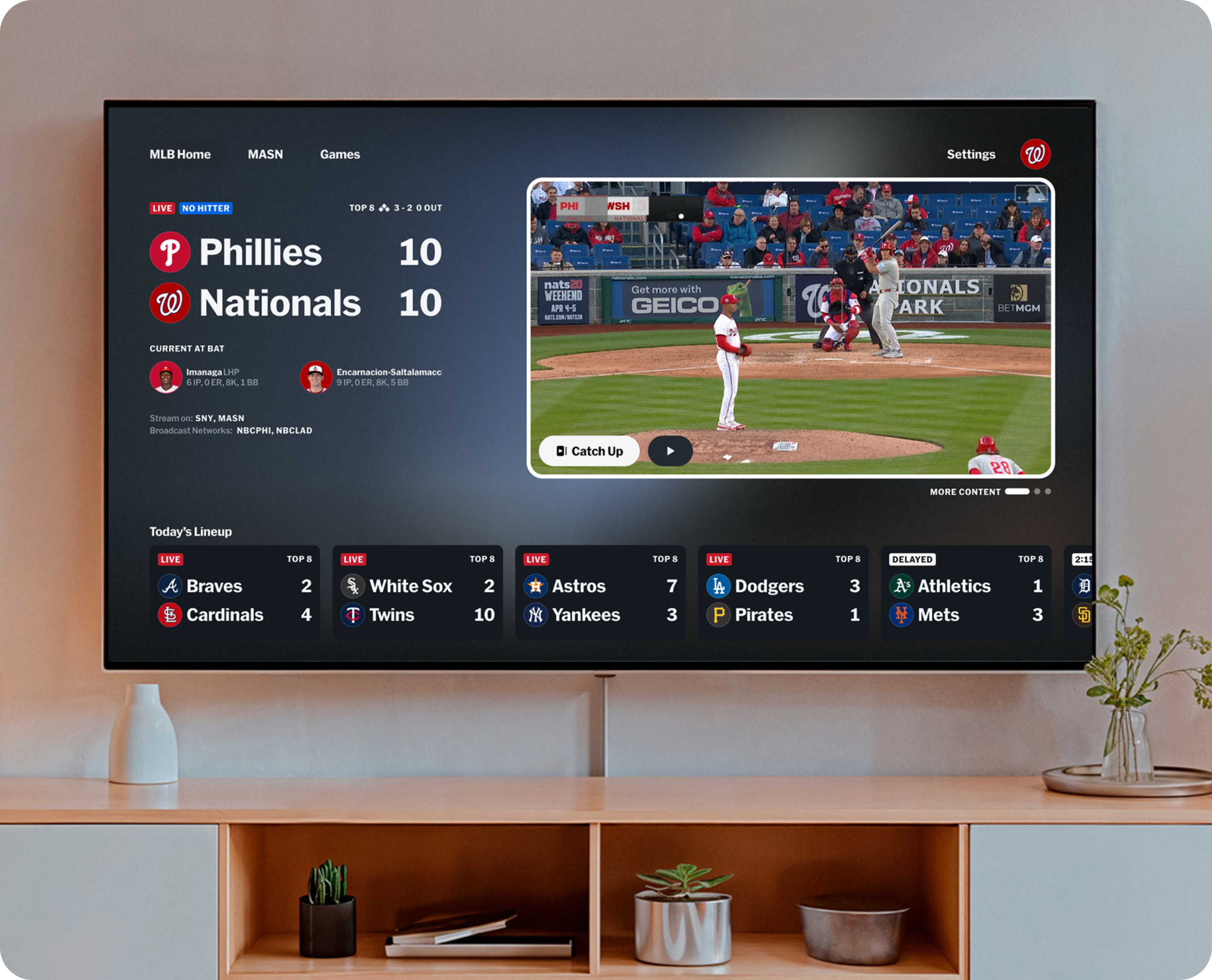
To activate eligible MLB.TV access from a TV provider, begin with the official Extra Innings authentication flow, verify the provider account that owns the package, and use the associated MLB account in the MLB app. The correct route depends on where you bought access. A television-provider login does not automatically replace your MLB account.
This guide explains the provider route, the separate television sign-in step, and what to check when activation fails. Instructions reflect official guidance reviewed October 10, 2026; app menus and provider participation can change. Start by identifying your package rather than repeatedly resetting passwords or purchasing another subscription.
Which MLB.TV login route fits your subscription?
Start with the bill or confirmation email for your baseball package. The right activation route depends on who supplies your access. An MLB account, a television-provider account, and an ESPN account can all be part of watching baseball, but they do different jobs. Being signed in to one does not prove that the other has received your subscription entitlement.
Extra Innings through a TV provider
If you purchased MLB Extra Innings from an eligible television provider, use the provider-authentication route. ESPN's current Extra Innings support guidance directs eligible customers to MLB's Extra Innings authentication page and specifies the MLB app for this streaming access.
Read the actual package name rather than relying on a baseball logo in your channel guide. For example, DIRECTV distinguishes its satellite Extra Innings subscription from an MLB.TV add-on for streaming customers. If you are unsure which one you bought, establish that first. It changes both the activation path and the company that can fix a missing entitlement.
MLB.TV purchased directly or through ESPN
A direct MLB.TV purchase follows account linking rather than Extra Innings verification. ESPN's activation instructions send ESPN purchasers to their account profile and existing MLB purchasers to MLB subscription management. Follow the route that matches your purchase record, then connect the requested MLB and MyDisney accounts.
Do not start a new subscription simply because the television app has not recognized the old one. First verify the email associated with the purchase and the email shown inside the app. Our MLB.TV subscription guide explains the wider plans and billing choices; the task here is getting the access you already purchased onto the right account.
A channel subscription is a different entitlement
MLB Network also offers provider-authenticated channel streaming. That does not establish ownership of a full MLB.TV package. Think of a television subscription as a collection of individual viewing permissions, rather than one key that unlocks every baseball product.
If your objective is watching a particular game tonight, identify its broadcaster before troubleshooting subscription activation. An account that correctly unlocks one channel can still lack another. Keep the package question and the game-channel question separate, and you will avoid following instructions for a service you never needed.
Get these account details ready before you activate
Before switching between your phone, browser, and television, gather three things: the provider account that owns the package, your intended MLB account, and proof of the baseball purchase. A current bill or confirmation is more useful than an old promotion. Check the service name and the season attached to it, especially if you are returning after several months away.
- Provider login: confirm that you can sign in directly to your television provider and view the relevant package.
- MLB account: identify the email you want to use in the MLB app. Look at the account already signed in on your television.
- Purchase details: keep the order date and package name handy if support needs to investigate.
- Your viewing device: note its model, operating system, and MLB app version before troubleshooting.
The email addresses on your provider and MLB accounts are not necessarily the same. Do not change them simply to make them look identical. The important step is authorizing the intended accounts through the official flow. Likewise, a password reset for MLB does not reset a cable-provider password. Use the recovery option belonging to the service whose login actually fails.
For example, DIRECTV has a dedicated user ID and password recovery page. Use the equivalent official help page for your own provider. Avoid testing a password repeatedly inside several different apps when you cannot yet sign in to the provider itself.
Choose one device for the authentication task, then use the television to test the result. This reduces account confusion: a shared computer may already be signed in as someone else, while a television can retain a different MLB account from a previous season. Write down which account is active on each screen, without saving or sharing passwords in a support message. Those small checks often reveal the problem before any reset is necessary.
Activate Extra Innings access through your TV provider
Once you have established that your package includes eligible MLB.TV access, authenticate it through MLB's official Extra Innings entry. The goal is to connect a verified provider entitlement with the MLB account you will use for streaming. You do not need to buy the same access again just to complete that connection.
Start with the official Extra Innings authentication page
- Open commerce.mlb.com/ei in a browser. Use this published entry rather than a saved search result for a different activation product.
- Sign in to the MLB account you intend to use, if the page requests it. Check the account before continuing.
- Select your actual television provider when the authentication flow asks for it.
- Complete the provider's sign-in and verification prompts using the account that owns the eligible package.
- Follow the return prompts and keep any confirmation or error message until you have tested streaming.
The appearance and order of prompts can vary. If your provider supplies its own current instructions, follow those for its sign-in portion. Do not substitute another provider because yours is absent, and do not enter your MLB password into a provider password field. A redirect between MLB and your provider is part of connecting two services; it does not make their account credentials interchangeable.
Pause if the page wants you to purchase a package that your current bill already shows. Recheck the account, entitlement, and provider path before accepting a new charge. A purchase form is not evidence that the original package has disappeared.
Return to the MLB app and test your access
Use the MLB app for Extra Innings streaming access under the current ESPN guidance. Confirm that the app is signed in to the MLB account used during authentication. If it was already open, close and reopen it; if it still shows the wrong account, sign out and return with the intended one.
Choose content that is appropriate for your package when checking the result. A free highlight can play without demonstrating paid-game access, while a restricted postseason telecast can fail even when the subscription is correctly activated. An eligible regular-season game archive is a more useful test when available.
Record what happens: a provider rejection, a purchase prompt, a blackout notice, or a playback failure. Those messages point to different next steps. If the provider confirms the package but the app continues to request a purchase, take that specific mismatch to support rather than repeating the whole flow indefinitely.
Sign in on a television or streaming device
Provider authentication and television sign-in are two separate tasks. Authenticate the package first, then open the MLB app on a supported viewing device and sign in to the associated MLB account. Use the app's current prompts rather than instructions for a different television model.
MLB's Android TV help, for example, describes entering a registered MLB email and password. Other devices can offer a different sign-in experience. Before assuming activation has failed, check whether your specific television or streaming player supports the current app and install available app or system updates. Our MLB apps guide helps distinguish viewing apps from score and ticket apps.
Treat a device code as a separate sign-in step
If your app displays a code or QR code, follow the address and instructions shown on that screen. Keep the television screen open while completing the task on your phone or computer. If the app instead asks for an email and password directly, use that method. There is no single device-code procedure that you should force onto every MLB app.
A connected-device code identifies a television sign-in session. A subscription-redemption code claims a specific offer, while provider authentication checks an existing television package. Typing a code from one task into a form for another will not solve the entitlement question.
After sign-in, inspect the account and try suitable content. A confirmation screen means the device accepted a login; it is not a guarantee that every live game is included. The official support example below illustrates that account-confirmation step. Its older labels may differ from the screen on your current device.
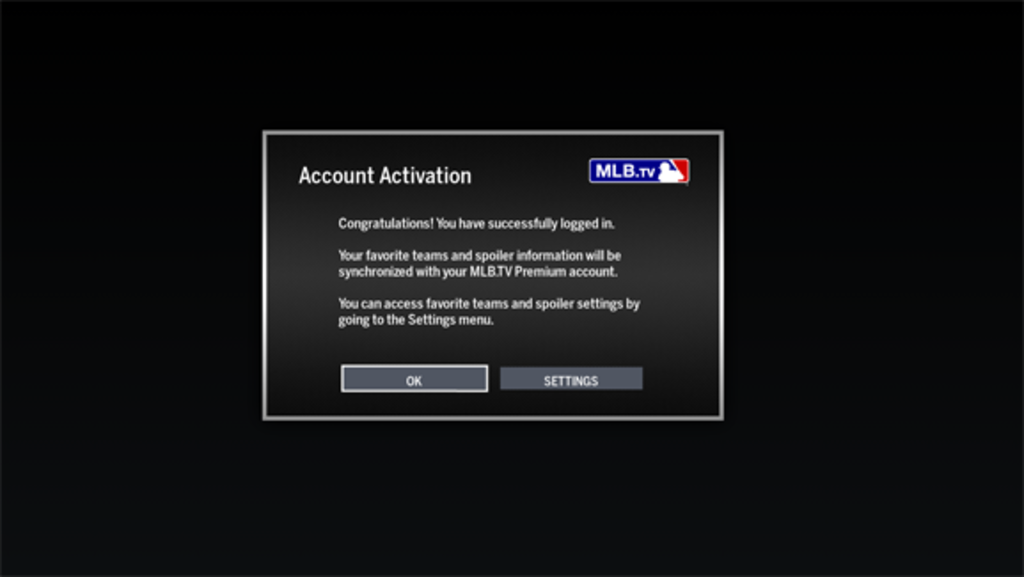
If the same account plays eligible content on one supported device but fails on another, focus on the second device's app, session, and connection. That comparison is more informative than buying again or changing the account used for successful playback.
Fix the most common provider activation problems
Match the fix to the point where the process stopped. Changing a television setting will not add a missing package to a provider account, and resetting a cable password will not correct an MLB account mismatch. Use the exact message on the failing screen to narrow the problem.
Your provider is missing or your package is rejected
First check that you entered the Extra Innings route rather than a channel-authentication or promotional-redemption form. Then confirm that the provider you pay is the provider selected. If it is not offered in that flow, contact the provider about participation and the streaming benefit attached to your package.
A useful question is: “Does the Extra Innings package on this account include MLB.TV streaming, and is this login eligible to authenticate it?” That is more precise than asking whether your provider carries baseball. Have the package name and order details available, but do not send a password.
If your provider login fails on the provider's own website too, solve that account issue there first. Once the account is accessible and the provider confirms eligibility, you can investigate the connection to MLB. Do not guess that every provider uses the same authorization timing.
The sign-in page loops or uses the wrong account
Close duplicate activation tabs and start from the official entry again. Check which MLB account and provider account the browser has retained. A shared browser can silently return to a different household member's account, so do not click through merely because a familiar name appears.
Review whether the browser is blocking a required sign-in redirect or site data. If necessary, clear data for the relevant sites and sign in again, knowing that this removes stored sessions. Chrome's cookie-management help explains the relevant controls. Avoid wiping unrelated accounts or disabling protection across the whole browser.
Trying another supported browser can help identify a browser-specific problem, but it is a diagnostic comparison rather than a guaranteed fix. Record whether the error occurs before the provider login, after it, or on the return to MLB. That distinction gives support something concrete to investigate.
You are logged in but still see a purchase prompt
Check the MLB email in the app against the account used for authentication. Refresh the app session by closing and reopening it, or signing out and back in when appropriate. Also confirm that you are using the MLB app for Extra Innings access instead of trying to transfer that entitlement to ESPN.
If the prompt remains, ask the provider to confirm package eligibility and ask MLB support to investigate recognition by the intended MLB account. For an actual ESPN-billed MLB.TV purchase, use ESPN's purchase and linking support instead. The route that supplied access determines who can inspect its billing record.
Send a concise account of the failure: package and provider, app version, device model, exact message, and whether another supported device works. A screenshot can help, provided it excludes passwords and payment details. Request a resolution to the existing access before starting another paid subscription.
Why an activated account can still show a blackout
A blackout message concerns permission to watch a particular game from your location. It is different from failing to sign in or failing to recognize your subscription. Extra Innings authentication does not erase local-team restrictions or nationally exclusive broadcast rights.
Postseason access also needs its own check. MLB's 2026 availability table distinguishes NBC/Peacock Wild Card broadcasts from FOX and TBS telecasts, with different U.S. authentication rules and international exceptions. Do not assume that activating a regular-season package unlocks every playoff game.
Use the MLB TV schedule to find the broadcaster for your game, then check whether your existing television package or streaming subscription includes that specific broadcast. If you are looking for tonight's matchup rather than diagnosing the account itself, begin with today's MLB games.
A fan who can watch an eligible game archive but receives a blackout on a live local-team game may have completed activation correctly. Repeating password resets will not change the game's rights. Conversely, a game that requests a purchase rather than displaying a blackout may indicate an entitlement or account problem. Read the actual message before choosing a fix.
Location verification can also be affected by public Wi-Fi, mobile hotspots, and device-location settings. If the app seems to locate you incorrectly, check the normal location permissions and connection, then contact MLB support with your real viewing location and the failing game. Our MLB.TV blackout guide explains the restrictions and legal viewing alternatives in more detail.
When first pitch is approaching, it is easy to confuse every error with a login failure. Baseball's game-by-game broadcast assignments make the channel check especially useful. Identify the correct rights holder first, and you can decide whether to fix account access or simply open the service that carries the game.
MLB.TV provider activation questions
Is MLB.TV free with every TV provider?
No. A basic television subscription is not a universal MLB.TV subscription. Some eligible baseball packages include streaming access as a benefit; others require a separate add-on. Confirm the benefit attached to your exact package and account before authenticating.
“Included” also describes the streaming component, not necessarily a free overall television or Extra Innings package. If you are comparing options, inspect the current charge, renewal terms, and existing purchases. Avoid paying for a duplicate package while trying to resolve a login problem.
Can Extra Innings access be linked to ESPN?
Under ESPN's current instructions, provider-supplied Extra Innings access uses the MLB app and does not support ESPN linking. This differs from linking a qualifying MLB.TV purchase made through ESPN or MLB itself.
If ESPN requests a purchase after you have authenticated Extra Innings, return to the MLB app rather than treating the ESPN prompt as proof of failure. Verify your account there and test suitable content. If you also have a separately purchased MLB.TV subscription, use that purchase's official linking route and keep the two billing relationships clear.
Before contacting support, identify exactly what you want to watch and which access you expect to cover it. “Extra Innings on my MLB app” and “an ESPN broadcast through my TV package” are different tasks. Naming the task helps the representative examine the right entitlement without changing a working subscription.
Loading comments...