
Identify which app is sending the baseball alert
To turn off unwanted MLB notifications from Google, first identify the sender. If the alert comes from the Google app, adjust its sports or topic notifications. If it comes from Chrome, change the website's notification permission. If it comes from MLB itself, change that app's alerts. These controls can look similar while affecting different services.
The quickest diagnosis starts with the next unwanted notification, before you dismiss it. Read the app name and, if shown, the website domain. On Android, touching and holding a notification can reveal its settings. That is more reliable than guessing from the team logo or the wording of a headline.
| What the alert identifies | Where to investigate | Likely scope of the change |
|---|---|---|
| Google app sports or topic preferences | Google's own sports updates | |
| Chrome with a website address | That website's Chrome permission | Notifications from the named site |
| MLB | MLB app alert preferences | MLB app notifications |
| Another scores or news app | The named app's settings | Updates from that particular app |
A single final score can arrive through more than one route. You might have followed a team in Google, allowed a sports website to notify you in Chrome and enabled the MLB app's game alerts. Disabling one route does not automatically revoke the other two. A second alert is evidence to inspect its sender, not proof that the first setting failed.
Keep the distinction between an alert and a feed item clear as well. A baseball story inside Discover is not necessarily a push notification. A score pinned to a screen is not necessarily an ordinary notification card. Start by describing exactly what you want to stop: a sound, a lock-screen score, a banner, a floating score or a recommended story.
There is usually no reason to clear browsing data, delete your Google account or reset the phone as an opening move. Those broad actions introduce extra changes before you know which component is responsible. A narrow adjustment is easier to test and easier to reverse if it removes something useful.
If you use several baseball apps, our MLB app comparison can help distinguish their roles. For this problem, the app name on the notification matters more than which app you usually use to watch games. Watching in one service does not make it responsible for every baseball update on your phone.
Once you have identified the sender, follow the matching section below. The examples focus on Android because Google sports notifications are commonly encountered there. Menu names and available categories can differ across devices, app versions and signed-in accounts, so use the visible controls rather than forcing your screen to match an older screenshot.
Change sports alerts inside the Google app
If the sender is Google, begin inside the Google app rather than Chrome. Check the profile picture first, especially if you use a personal account and a work account. A change made while viewing one account's interests may not explain alerts associated with another account or device.
Turn off the sports category when it is available
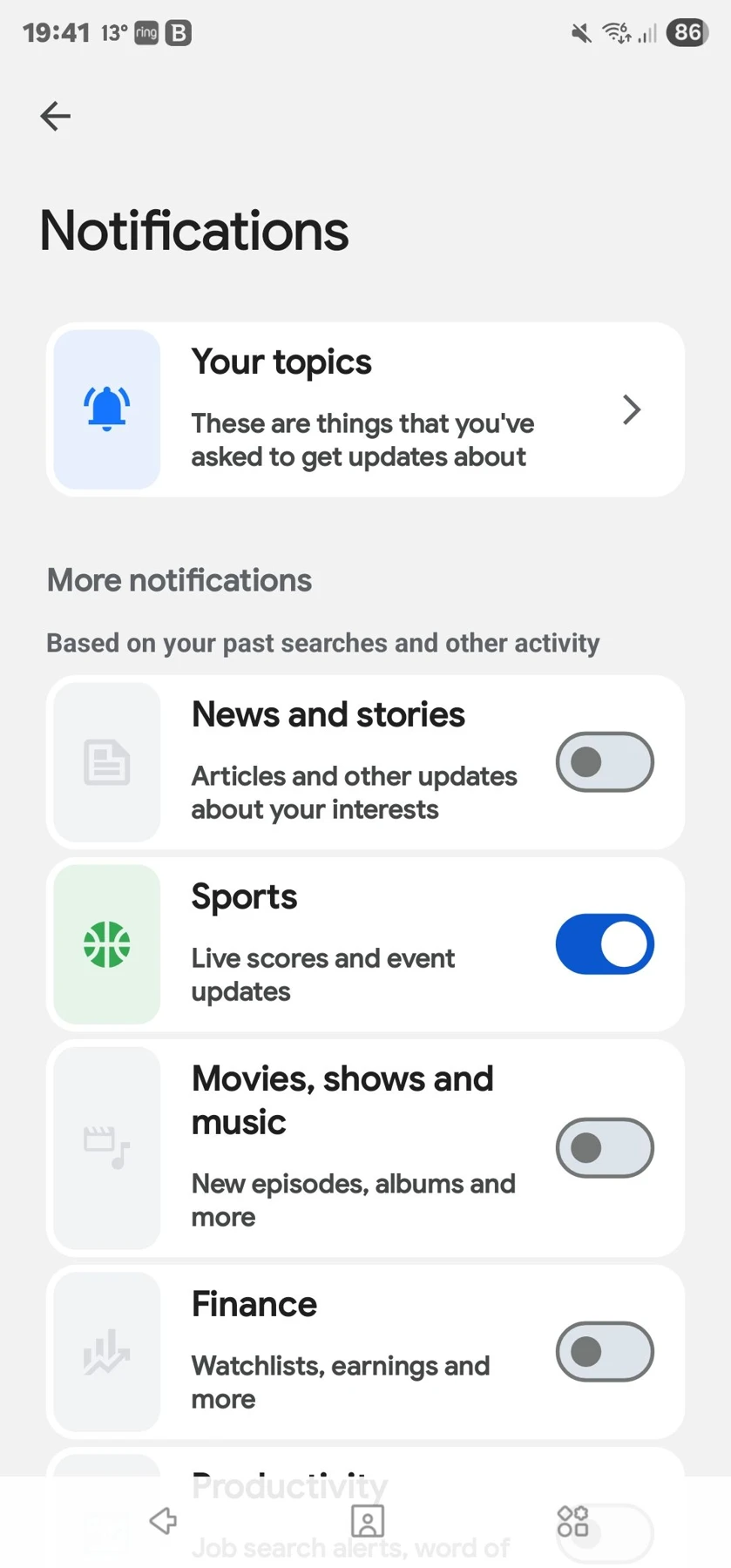
Open Google, tap your profile picture or initial, and choose Settings > Notifications. Turn off Sports if that category appears. Google's notification help page documents category controls and other topic-level options.
This is a sensible choice when you want no Google sports scores, regardless of team. If you still want football or basketball updates, consider a narrower team-level change first. A category switch addresses a broader preference than "stop showing me the Yankees." Decide which result you want before changing several switches.
If your screen differs, look for notification preferences within the current app. Do not substitute a similarly named location setting or a browser permission. Update through the official app store if necessary, then check again. A missing category is a reason to use the documented alternative controls, not to download an unofficial replacement app.
Remove an unwanted team without losing every update
For followed topics, Google's current Android instructions point to Saved > Interests > Followed, where the topic's notification control can be disabled. Its help page notes that Follow availability is limited to the US. For an unwanted suggested alert, use its menu in Get Notified and choose the available topic-off or not-interested action.
Turning off a notification bell and unfollowing a topic are different intentions. You may want a team to remain in a feed while stopping interruptions. Or you may have no interest in the team at all. Use the control that matches that preference rather than assuming every button with the club's name has the same effect.
A recommendation can also reflect previous interest rather than an explicit follow. Searching for an opponent's schedule once does not mean you want its final score every night. Google's Discover customization guidance distinguishes topic and source preferences. Feed controls are relevant when the unwanted item is a recommended story, whereas notification controls target alerts.
After making the narrow change, leave the other settings alone long enough to observe the result. If another baseball alert arrives, inspect its sender and team again. You may have stopped the intended topic successfully while receiving a separate category of news, a second account's update or a notification from another app.
Use Android notification settings for device-level control
If you want a firm stop on this phone, Android's app-level permission is another option. Open the phone's Settings, choose Notifications and then App notifications, and select the actual sending app. Turning off Google's master notification permission blocks that app's notifications on the device, rather than only a particular baseball team.
This broader scope is the main tradeoff. You may be happy to stop every Google alert, or you may still want weather and other updates. If your phone exposes notification categories, inspect them before using the master switch. Names and category availability depend on the app and manufacturer, so there is no universal "MLB" category that every Android phone must show.
The Samsung notification guide and Pixel notification guide describe their respective controls. Use the instructions for your device when a screenshot from another phone shows a different arrangement. Searching Settings for "app notifications" can be faster than looking for an identical menu layout.
Separate sound from content. A silent score alert can still display the result. If your goal is avoiding spoilers, muting its sound is insufficient. If your goal is preventing interruptions during a meeting, silence may be enough, and you may prefer it to losing the notification entirely. Choose the remedy for the problem you actually have.
Dismissed notifications require a little more detective work. Some Android devices offer notification history, which can help identify a recent sender. Its availability varies, and you should not assume that enabling it now reconstructs every earlier alert. If history is unavailable, wait for the next unwanted card and inspect it before clearing the notification shade.
Also confirm the device you are changing. A phone, tablet and watch can have related but separate notification behavior. Stopping a phone banner does not prove that a tablet signed into the same account has the same device permission. If you see an alert elsewhere, identify its source there rather than repeating unrelated phone changes.
There is no need to grant an outside utility access to all notifications simply to disable a sports update. The built-in controls are the appropriate starting point. Avoid installing an app advertised as a special MLB notification blocker when the sending app's normal permission accomplishes the task.
Once you change a device-level setting, record its scope in plain language: "Google notifications disabled on this phone," for example. That note helps if you later wonder why another useful Google alert disappeared. You can restore the master permission and return to a narrower sports or topic setting when you want more selective control.
Block baseball website notifications in Chrome
If the notification identifies Chrome and a sports website, changing Google's followed teams will not address that site's permission. Chrome is delivering an alert from a website you previously allowed. Start with the domain printed on the card, even if the headline concerns the same MLB team that appears in your Google feed.
On Android, open Chrome's Settings and look under Site settings and Notifications for the sending site. On a computer, the route is Settings > Privacy and security > Site settings > Notifications. Block the unwanted site's notification permission. Google's Chrome notification instructions provide the platform-specific version.
Change the specific site permission, not every browser setting
Pay attention to the exact address. A familiar sports headline can arrive from a less familiar site. Blocking one domain does not automatically block every other baseball publisher, and permitting one does not make every similarly named domain trustworthy. You do not need to open the notification's link to identify the permission you want to remove.
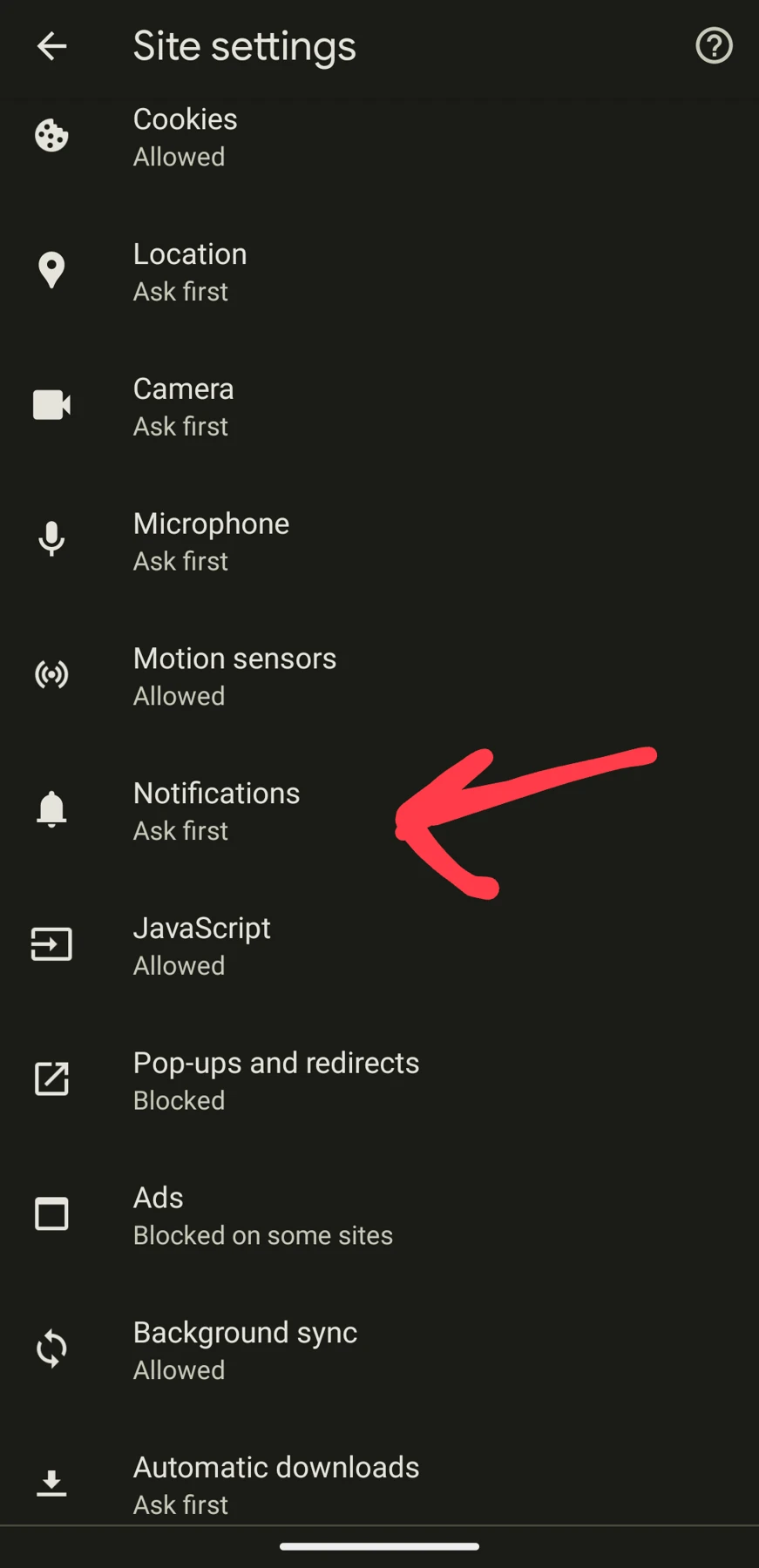
Notification permission is separate from pop-ups, autoplay sound and the content of a web page. If an alert appears in the operating system's notification area, review Notifications. If a new tab or window opens while browsing, that is a different symptom. Changing an unrelated switch may leave the original problem untouched.
Likewise, closing a tab is not a dependable substitute for revoking an unwanted notification permission. The useful change is the site's permission, not whether you happen to be reading that page at the moment. You can keep visiting a baseball site while declining its interruptions.
A broad browser reset is rarely the best first experiment. It changes multiple preferences and makes it harder to tell which one solved the problem. Blocking the identified site is clearer: after the change, check whether another notification comes from that same address. If a different address appears, investigate it as a separate sender.
On a shared computer, confirm that you are adjusting the Chrome profile in which the notifications originate. Do not assume a change on a laptop also proves that a phone's browser permission has changed. Inspect the device and profile that actually displayed the unwanted update.
If you later want alerts from that site again, return to its permission and choose the appropriate allowed state. Restoring one known source is easier than reopening notification access to every website. Keep your decision specific: which site may interrupt you, on which device, and for what useful purpose?
Keep useful reminders while avoiding score spoilers
Decide whether your goal is fewer interruptions or no baseball results until you watch. Those goals overlap, but they require different checks. A silent notification might satisfy the first while spoiling the game for the second. A reminder before first pitch can be useful even when a final-score alert is unwelcome.
Check lock-screen updates and duplicate apps
Google also offers sports scores on supported Android lock screens. Availability varies by device, language and manufacturer. If the score appears as an ongoing live update or pinned game, inspect that feature's own controls rather than assuming an ordinary notification category is the whole explanation. Google's lock-screen sports guidance describes the distinction.
On supported Pixel software, an app can also have a Live updates control within its notification settings. Look for the option actually present on your phone; do not assume another manufacturer's instructions apply. A live score area, a home-screen widget and a standard notification card can be separate surfaces.
If you watch delayed games, review other obvious spoiler sources at the same time: the MLB app, a second scores app, a smartwatch and a browser start page showing sports headlines. You do not need to turn them all off permanently. You do need to understand which ones can reveal the result during your chosen viewing window.
Our full-game replay guide covers the viewing side. Hiding scores inside a viewing service does not necessarily suppress scores delivered by Google or a separate news app. Treat the replay setting and the phone's alert settings as two checks in the same routine.
Test one change and restore only what you need
Use a simple test log: what you changed, the app or site involved, the device and the next unwanted alert. If Google stops sending team scores but Chrome still sends recap headlines, you have narrowed the problem successfully. Continue with Chrome's named site rather than undoing the Google change and starting over.
Do not interpret an hour without alerts as proof when your team has an off-day. Observe the next relevant game or news cycle. Conversely, an old notification still sitting in the shade is not necessarily a newly delivered alert. Clear the existing card after recording the sender so that your next observation is meaningful.
You can replace unsolicited updates with a deliberate schedule check. Bookmark today's games for first-pitch planning and the MLB TV schedule for viewing information. Before a delayed viewing session, avoid opening a scoreboard merely to check a start time if seeing results would defeat your plan.
When you want alerts back, restore the narrowest useful option first. That might be one team, one trusted site or a pregame reminder. Keep a note of any master permission you disabled, because restoring an in-app preference alone may not restore delivery if the device still blocks the app.
The lasting fix is an understood setting: you know who was sending the update, which control stopped it and what other useful notifications that control affects. That is easier to maintain through app updates than repeatedly clearing every baseball card without changing its source.
Loading comments...