
To watch an MLB full game replay, open the MLB.TV archive or an official full-game video, select the game's date and opponents, and choose a television broadcast instead of highlights. On MLB.TV, check your subscription access and the game's availability before expecting it to play. This guide helps you find the right matchup, avoid score spoilers and choose between the complete broadcast, a condensed game and a short recap.
Choose a full replay, a condensed game or a recap
Start by deciding what you want to watch. A full-game replay is the complete game broadcast, while a condensed game is an edited video. A recap focuses on selected moments. Finding one of the shorter versions does not establish that you have found the full broadcast.
| Option | What you are looking for | Best use |
|---|---|---|
| Full game or archived broadcast | The complete game video | Watch the game unfold from the beginning |
| Condensed game | An edited sequence of game action | Catch up when you have less viewing time |
| Recap or highlights | Selected important plays | Review the main moments quickly |
| Gameday or Gameday 3D | Game information, tracked plays or rendered animation | Follow pitches and plays without a full broadcast |
MLB's Condensed Games collection labels its edited videos separately. In a game listing, check the option you select before pressing play. A thumbnail showing your two teams can lead to a recap, an individual home run or a full broadcast; the teams alone do not identify the format.
Gameday 3D renders tracked plays as animation rather than showing the television broadcast. It can help you inspect a play, but it serves a different purpose from settling in to watch nine innings with a broadcast crew. The word replay can also refer to an umpire's review of a disputed call, so include “full game” or “archived broadcast” when that is what you need.
For a game you missed last night, begin with the official game listing and look for its full video option. For a quick catch-up, choose the labeled condensed game or recap deliberately. For an old classic, search the exact year and opponents, then confirm that the publisher identifies the video as a full game.
Do not judge the format only by a suggested search result. Open its description and player label. That brief check helps avoid watching an edited package when your goal is to experience the whole game.
Find the right completed game in MLB.TV
Begin at the official MLB.TV Media Center, sign in to the MLB account associated with your access, and choose the date of the game. MLB's desktop viewing guidance directs fans to select a calendar date and scroll through the available games for that date.
A useful lookup sequence is date, matchup, then video format. This narrows the search before you investigate a subscription or playback problem. Opening the right day is particularly important when you are searching for “MLB replay today”: you might mean a game completed today, yesterday's game you want to watch today, or a contest that finished after midnight where you live.
Use the date, opponents and doubleheader game number
- Confirm the baseball date. Use the date attached to the official fixture rather than relying only on when you watched its final inning.
- Match both opponents. A team's recent games can include several contests against the same club.
- Check Game 1 or Game 2. A doubleheader creates two games with the same teams and date.
- Confirm the game was played. A postponed listing cannot supply a completed broadcast for a game that did not happen that day.
If your local time crossed into a different date, check the adjacent day in the game calendar. For a recent matchup, MLB games today can help identify the fixture and its status. The actual video remains on the broadcaster's or MLB's platform.
Select the full broadcast rather than a short video
After selecting the matchup, look for the available full video feed. Game selection can offer separate home and away video and radio feeds. Choose video if your goal is to watch the broadcast; an audio station opens a different experience.
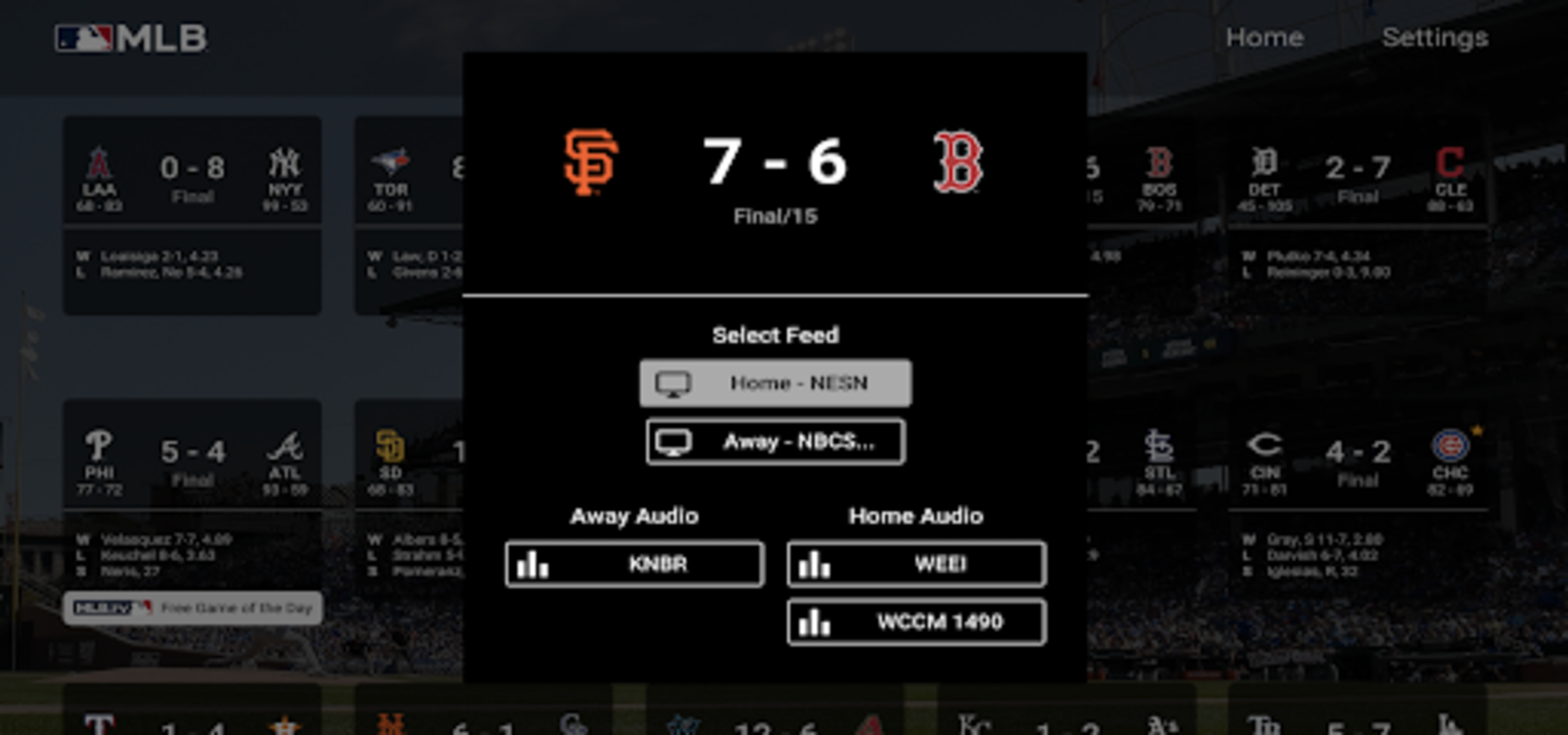
A “Condensed Game” or “Recap” option is an edited package, even when it sits beside the full video choices. If you want the complete game, select its broadcast feed rather than the shorter item. Where more than one broadcast is offered, choose the commentary you prefer; do not assume both feeds will exist for every matchup.
If the full video is locked or absent, take note of that exact condition. A visible recap does not confirm full-game entitlement, and a missing feed does not immediately prove that your television is broken. The next steps depend on whether the listing, account or player is causing the problem.
Watch archived games in the MLB app and on connected devices
MLB.TV subscribers can access game archives in the MLB app. On a phone or a supported connected device, sign in with the MLB account that carries your entitlement, find the game date, select the matchup and choose its available video feed. Menu placement varies across devices and app versions.
Use the app's game listings rather than assuming that the home screen's featured video is the full replay you want. A featured story, highlight or studio program can share the same team branding without being the game broadcast. Returning to the game date and opponents is the more useful way to establish what you are opening.
Before moving from a phone to a television, check which account each device is using. Being signed in on one screen does not prove that the other screen is signed in to the same account. If you are deciding which service you have, the MLB.TV subscription guide explains the package context.
Hide scores before opening the game
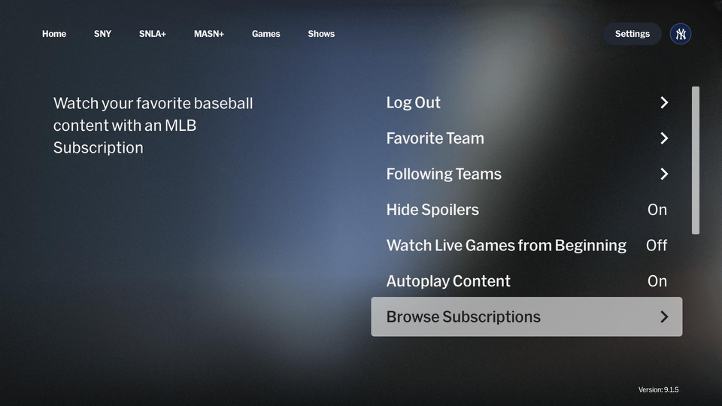
Look in the app settings for “Hide Scores” or “Hide Spoilers” before choosing the matchup. MLB's official Roku illustration shows a Hide Spoilers setting, and its Apple-device guidance includes a hide-scores toggle. Check the setting on the actual device you plan to use; do not assume that changing it elsewhere has updated every screen.
Hiding scores is separate from a setting that starts a live game from the beginning. The first controls displayed information; the second changes how a live stream begins. If you are opening a completed archive, verify that you selected the finished game rather than a live broadcast of another matchup.
For a more useful spoiler-free routine, avoid the news feed before opening the replay and review game-result notifications on your phone. A score-hiding toggle cannot remove information you encounter in another app, a headline or a video description. Set up the game lookup first, then adjust your surroundings to match how much you want to know.
Understand replay access, blackout delays and 2026 account changes
As reviewed on October 10, 2026, MLB's Media Center lists a 90-minute archive window after games finish. Start that count from the final out, not the scheduled first pitch. A rain delay or extra innings can push your evening replay later than you expected.
Treat that published window as your first timing check. Your account must also have the right access, and the specific broadcast must be available to you. A finished game, an active subscription and a visible video tile are three useful clues; none should be treated alone as a promise that every feed will play.
ESPN-linked subscriptions and Extra Innings access are different
For a 2026 MLB.TV purchase through ESPN, check the MLB activation option in ESPN Account Management under Your Other Services. Linking your MLB and MyDisney accounts is the official route to the additional content in the MLB app. Subscribers who purchased directly through MLB can follow the opposite account-linking route in MLB Account Management. ESPN explains both linking paths.
A cable-provider Extra Innings subscription takes a different route. Eligible customers authenticate at MLB's Extra Innings activation page; ESPN specifies MLB-app-only access for that benefit. Use our TV-provider activation guide if your subscription came with a television package. Repeatedly signing into ESPN will not complete that separate provider-linking step.
Also check the subscription's access period before planning a winter of replays. ESPN's season-end help says seasonal MLB.TV subscriptions include archives during their billing period. Read the terms shown for your own plan, especially if it is monthly or supplied through another company. A subscription is access to a service; save the renewal and expiration information alongside your receipt.
Check the restriction for the specific game
Regular-season games, special events and postseason broadcasts need separate checks. MLB's game-availability help distinguishes territories and postseason television partners for live viewing. That live table does not, by itself, establish the replay rights of every archived game.
When a replay displays a restriction, read that message before changing devices. Record the matchup, date, video feed and country where you are watching, then check the official availability information or contact support about that exact broadcast. Our MLB.TV blackout guide explains the location questions to ask. Waiting addresses a processing window; it does not establish that your account owns the required viewing rights.
Find official free full games and classic broadcasts
You can find selected full games outside the paid season archive. Begin with MLB's own video pages and verified league or club channels. A public classic upload can be a good choice for a baseball night when you want a particular old game and do not need the entire current-season library.
Two official starting points are 1981 World Series Game 3 and Ichiro's Yankees debut, July 23, 2012. MLB labels both as full games. Open the player to check whether the video is available where you are watching. A listed archive page is useful evidence that a video exists, but your own playback check settles whether you can watch it now.
Official club channels can also release selected recent games later. For example, the verified New York Mets channel lists Mets vs. Brewers, 2024 Wild Card Series Game 1, FULL GAME. Read the game date in the title or description; an upload's publication date may be months after the actual matchup. A single official upload does not mean the club publishes every game for free.
Use the following checks when choosing a free replay:
- Confirm the uploader is the league, the club or the named broadcaster.
- Read the whole title. “Full game highlights” can still describe an edited recap.
- Check the duration and the opening sequence. Does the video show a sustained broadcast, or jump straight between big plays?
- Check the year, opponents and series game number before settling in.
For more options, our guide to watching MLB free legally covers official offers. Keep your expectations tied to the individual listing: a free classic, a promotional game and a paid archive are different ways to watch baseball. Search for the game you want, then verify the source and format before treating the first video result as a complete replay.
Fix a missing replay or a game that will not play
A missing video tile and a spinning player need different responses. First establish that you have found the correct game and the correct kind of video. Then work through the account, restriction and device checks in that order. This keeps you from reinstalling an app when the issue is simply a postponed game or an unlinked subscription.
Check the game listing before troubleshooting the device
Return to the calendar and verify the game date, opponents and doubleheader number. Confirm that the game actually finished; a postponement may leave a listing without a played-game broadcast. Select the television feed again and make sure you did not choose audio, highlights or a condensed game.
Try another completed matchup that your subscription should cover. If that plays, the original game's feed or availability deserves the next check. If neither plays and both ask you to subscribe, inspect the signed-in account and purchase route. Being logged into an MLB account does not establish that the subscription has been connected to that account.
If the player specifically asks you to update account information, follow the official account-settings prompt. MLB's viewing instructions direct that message to the Payment Profile. Check your existing receipt and account before making another purchase; duplicate payment will not help identify the original problem.
Resolve account and playback problems
For crashes, freezes or connection errors, begin with the current app and operating system. Close the app completely, reopen it and restart the device if needed. These are starting points in MLB's Android troubleshooting help. On a computer, MLB's desktop help also recommends clearing the browser cache and checking the connection when the player stays blank.
For a location-verification message, check location permissions and your actual connection. MLB's public-network guidance explains that shared networks can block streaming and that network routing can affect verification. If you are on hotel or workplace Wi-Fi, check whether streaming is permitted. Test your ordinary home connection when available, and describe your real viewing location to support.
Keep a short support note: game date and opponents, chosen video feed, exact error message, device model, app or browser version, purchase provider and the checks already attempted. A screenshot of the error helps distinguish a rights message from a playback failure. Leave passwords and complete payment-card details out of that note. With the matchup and error in hand, support can address the replay you actually want to watch.
Build a replay routine without losing your place
Before pressing play, choose the date and broadcast, set your spoiler preferences and decide whether you want the entire game or an edited version. For a live game, a start-from-beginning setting can be useful. For a completed game, select the archived matchup itself. Check the opening of the video so you know you are beginning where you intended.
MLB's browser-player instructions describe pause, play, rewind and broadcast-selection controls. Use those controls to revisit a pitch sequence or check another available commentary feed. You can enjoy a replay at your own pace: pause between innings, rewind a defensive play and return to the broadcast without chasing the live schedule.
If you stop halfway through, make a small manual bookmark. Record the game date, opponents, chosen feed, elapsed video time and inning. “July 12, away feed, 1:08:30, top fifth” is more useful than “yesterday's game.” Leave the score out if you are trying to preserve the result for another viewer.
When continuing on a different device, open the same broadcast and check the starting point before moving along the timeline. Do not assume every app will preserve the same position. Different feeds may also have different introductions, so an inning note is a helpful backup to the timestamp.
For tomorrow's live baseball, check our MLB TV schedule. For tonight's replay, keep the completed game's date handy and go directly to its archive. That small distinction makes it easier to find the broadcast you want and settle into the game without accidentally opening the latest score.
Loading comments...